
Connecting Telegram to Habarichat helps you access your messages without having to open the app. It also enables you to utilize the Habarichat agent to answer your messages while you’re busy, according to the knowledgebase. It takes less than five minutes to set up. You’ll just need to create a bot using Telegram’s BotFather, grab a token, and paste it into Habarichat.
Here’s exactly how to do it.
Requirements
- A Telegram account
- Access to your Habarichat dashboard
- A few minutes to follow the steps below
Here is a step-by-step guide on how to go about it:
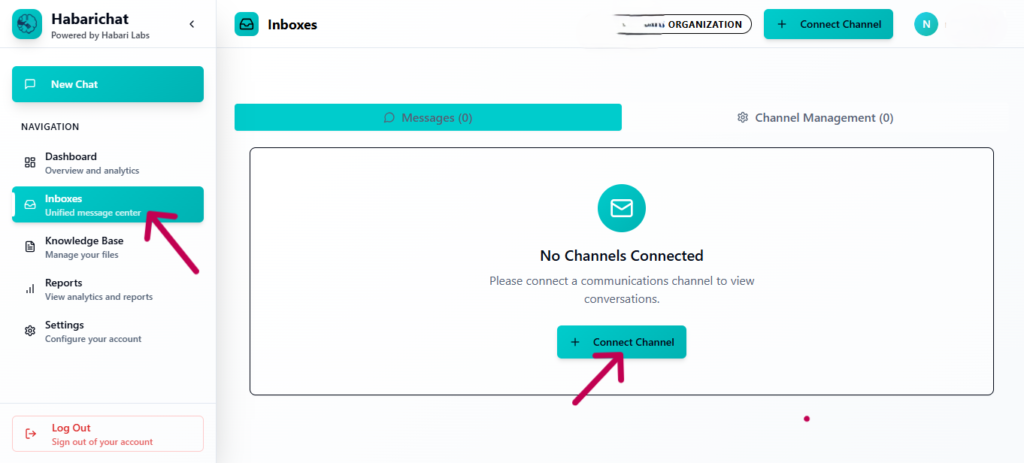
Step 1: On the left menu of your dashboard, click on “Inbox” then go to the “connect channels” tab.
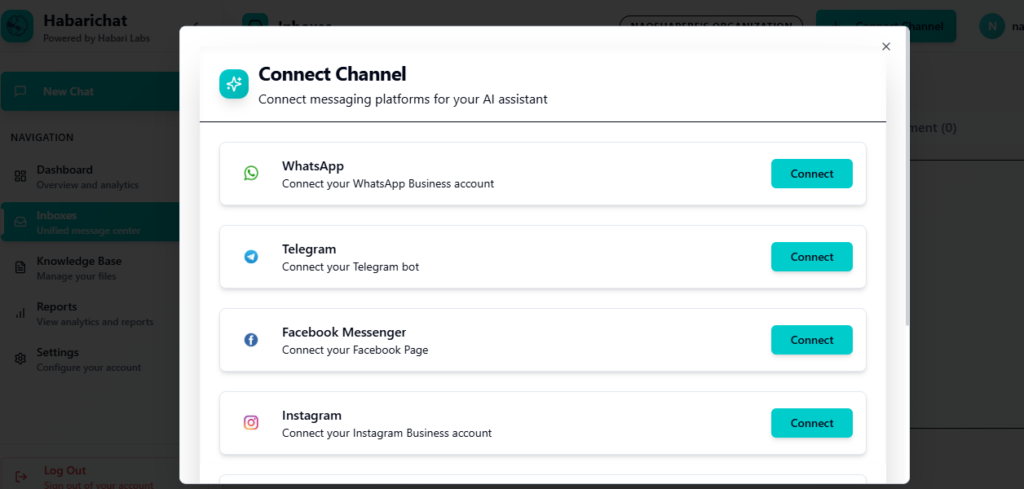
Step 2: Select “Telegram” from the channels and click on “connect.”
Step 3: Create a Telegram Bot. Telegram uses bots to act as the bridge between your account and third-party tools like Habarichat.
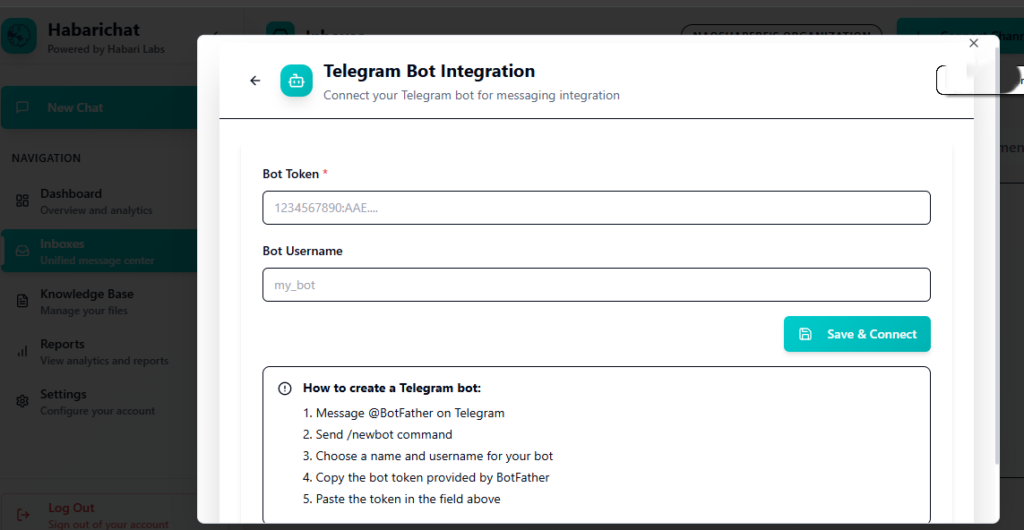
Here’s how to create one:
- Open Telegram and search for @BotFather — this is the official bot that creates and manages other bots.
- Start a chat with BotFather and send the command: /newbot
- BotFather will prompt you to choose a name for your bot. This is the display name users will see (e.g., “Customer Support”).
- Next, choose a username for your bot. This must end with “bot” (e.g., YourCompanySupportBot).
- Once your bot is created, BotFather will send you a bot token — a long string of letters and numbers. Copy this token immediately. You’ll need it for the next step.
Disclaimer: Keep your bot token private. Anyone with this token can control your bot.
Step 4: Connect Your Bot to Habarichat. Now that you have your bot token, it’s time to connect Telegram to Habarichat.
Log in to your Habarichat dashboard.
Navigate to Channels.
Select Telegram from the list of available channels.
Paste the bot token you copied from BotFather into the field provided.
Click Connect.
That’s it. Habarichat will verify the token and establish the connection. Your Telegram messages will now appear in your Habarichat inbox alongside conversations from other channels.
Step 5: Test the Connection. To make sure everything is working:
Open Telegram, start a chat, and send a test message.
Check your Habarichat inbox; the message should appear within a few seconds.
You can turn autoresponse on or off for Telegram at this stage. We recommend turning it on to test whether it pulls information correctly from the knowledge base you uploaded.
Final Thoughts: Connecting Telegram to Habarichat is a straightforward process. Once connected, you’ll have one less channel to manage separately and one more way to stay responsive.
Try and let us know!