Connecting Instagram to Habarichat AI allows you to access and answer your Instagram DMs without opening the app. It also allows you to let the AI agent ease your or your team’s workload by answering the messages automatically, or giving suggestions for an appropriate response based on the knowledge base you set up when you were getting started.
Requirements
Your Instagram page needs to be a business account.
Your Instagram page needs to be connected to your Facebook page.
You can only respond within 24 hours of the customer initiating a conversation.
Here is a guide on how to integrate your Instagram inbox into HabariChat:
Step 1: Go to “Connect Channels” on your Inbo and select “Instagram“
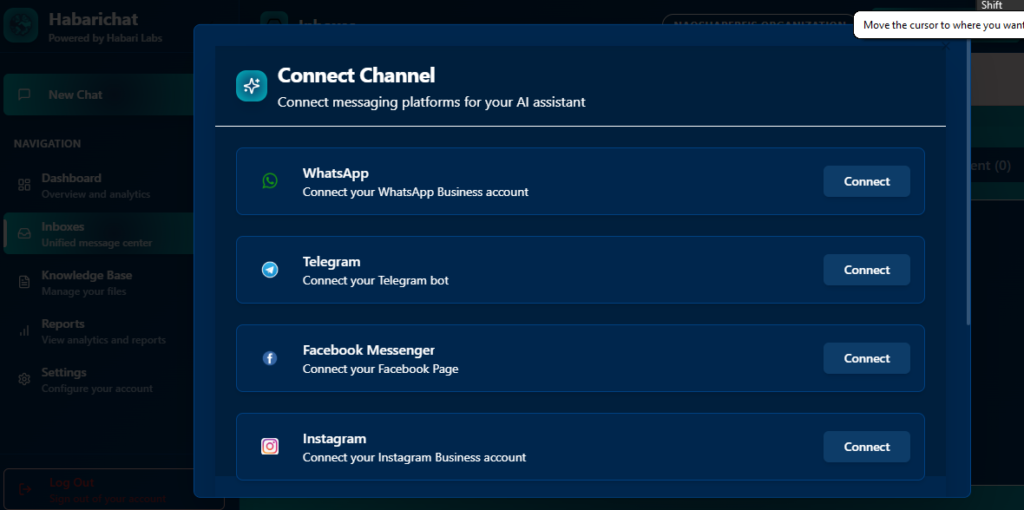
Step 2: It will redirect you to connect with Facebook. This is because they are both Meta platforms. Click “Connect with Facebook“.
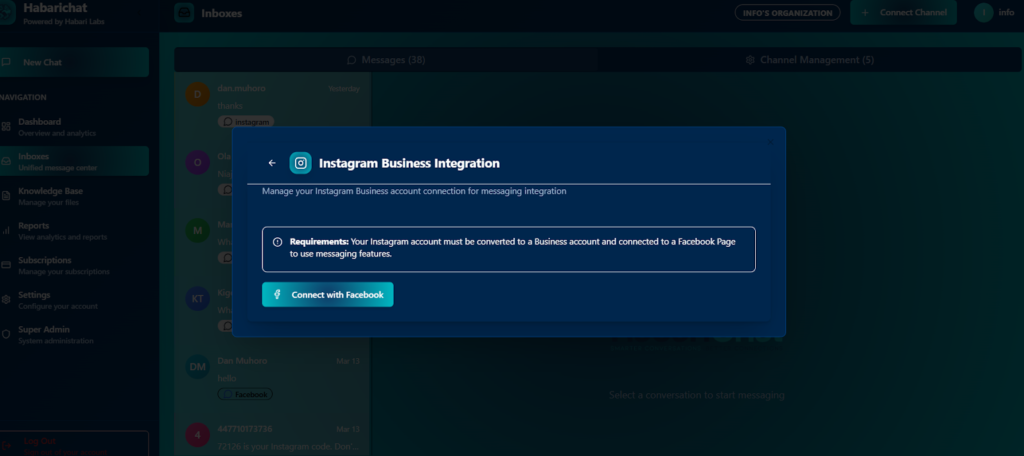
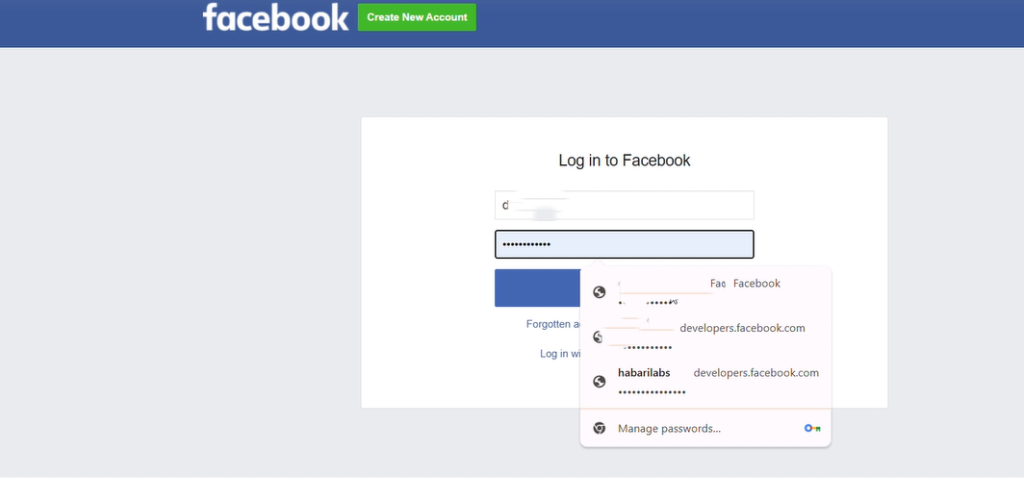
Step 3: Select the Facebook account you want connected. Alternatively, you can manually put in the email and password associated with the account. Then click on “log in”.
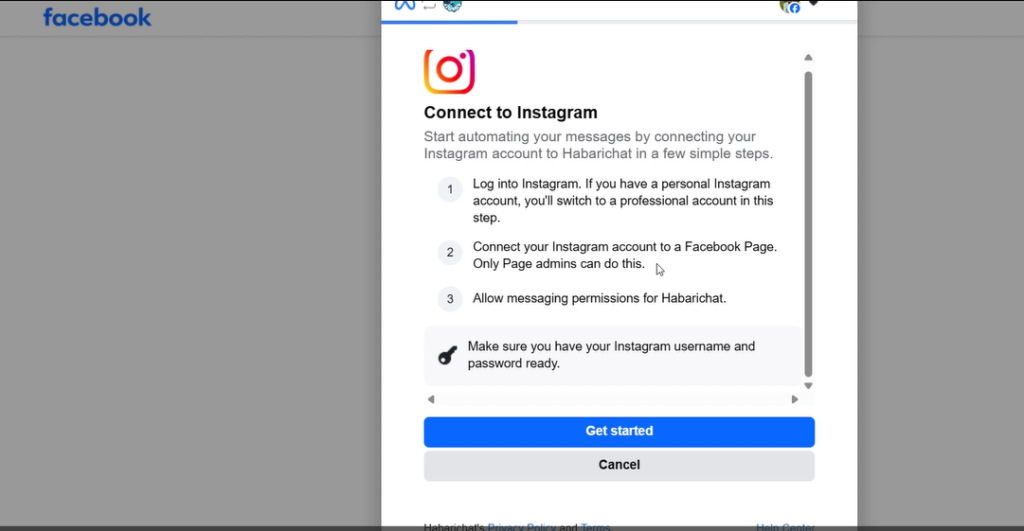
Step 4: When the pop-up comes to Continue as (your name), click “ continue”. Then you will be redirected to your Instagram Channel. Click on “Get Started”
Step 5: Log in to your own or your business’s Instagram account (for example, “habari labs” as shown below.) Alternatively, if your account does not automatically appear, you can go to step 6.
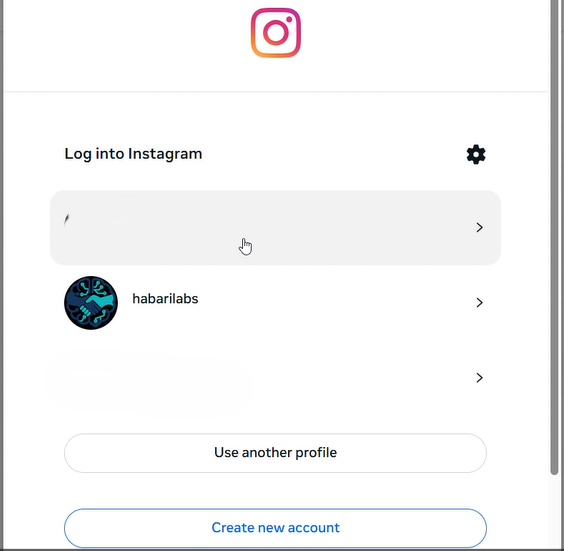
Step 6: Log in by in putting your Instagram channel’s email and password. Then click on “Log in.”
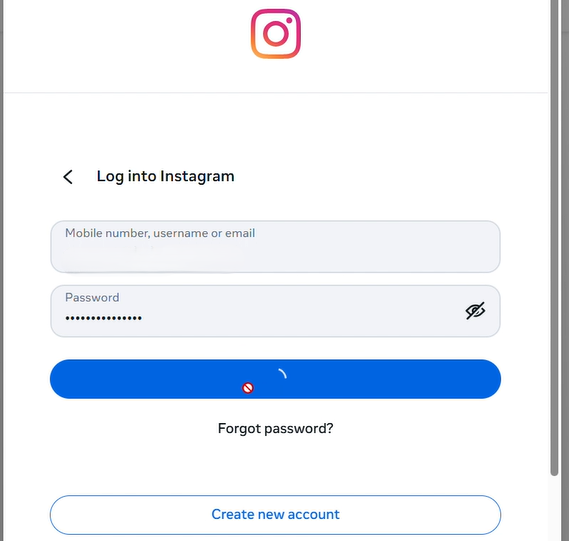
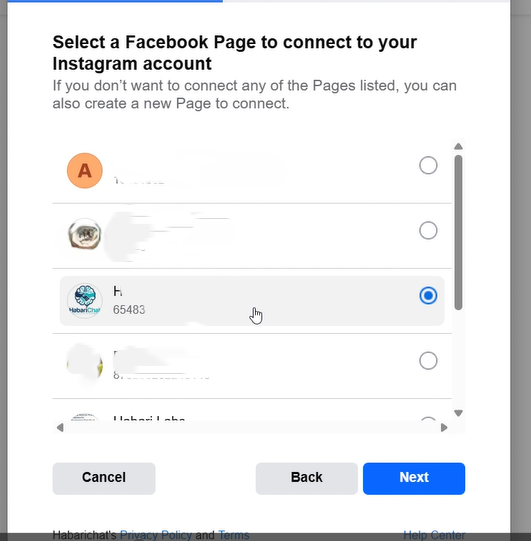
Step 7: Select the Facebook account that’s linked to your Instagram and press “Next”.
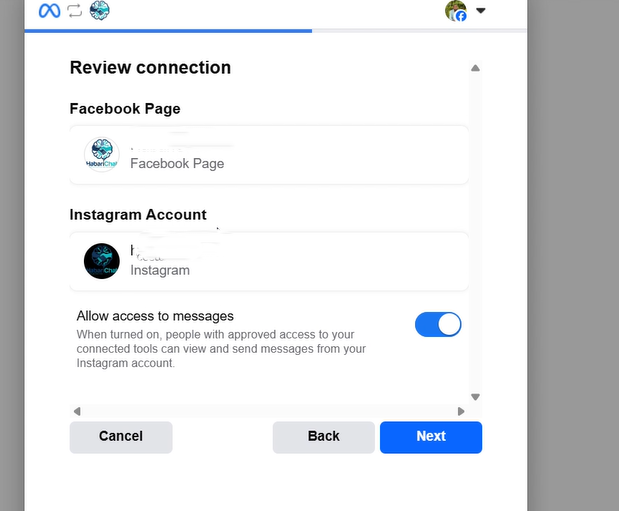
Step 8: This step ensures that HabariChat is getting connected to the channels you intended. Kinda like, Safaricom’s “customer uko sure unataka kubuy minutes na fuliza?” but only once. It allows you to authorize Habarichat ai to access your page’s messages. Click “Next“
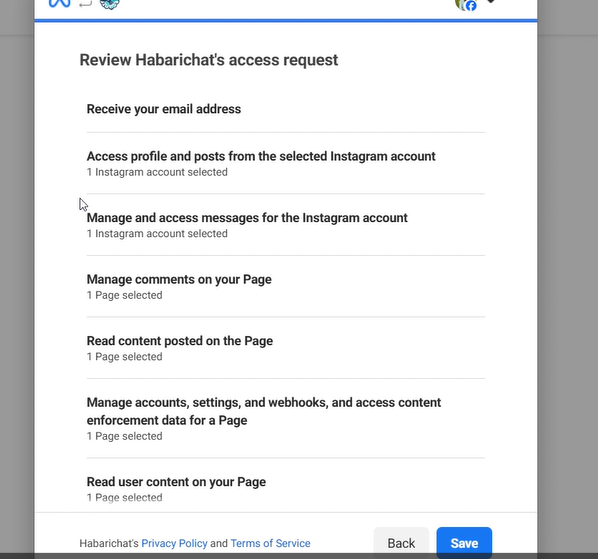
Step 9: Review the permissions. This is to ensure that you give approval for HabariChat to access and manage your messages. Once done, click “Save.”
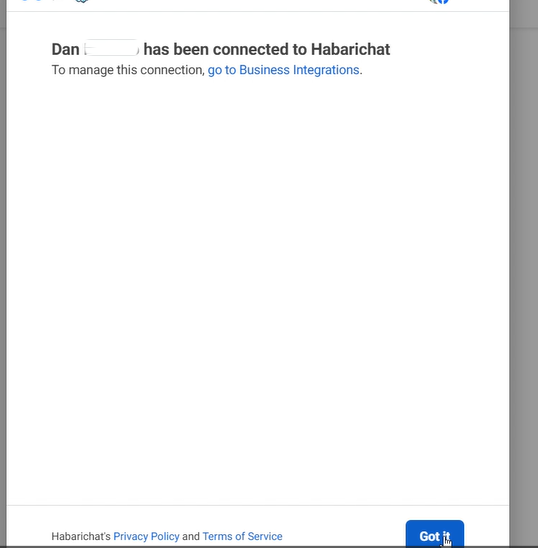
Step 10: Almost there! You will be directed to the tab that says (your name) has been connected to HabariChat, as shown below. Click on “Got it” to be redirected to the final step.
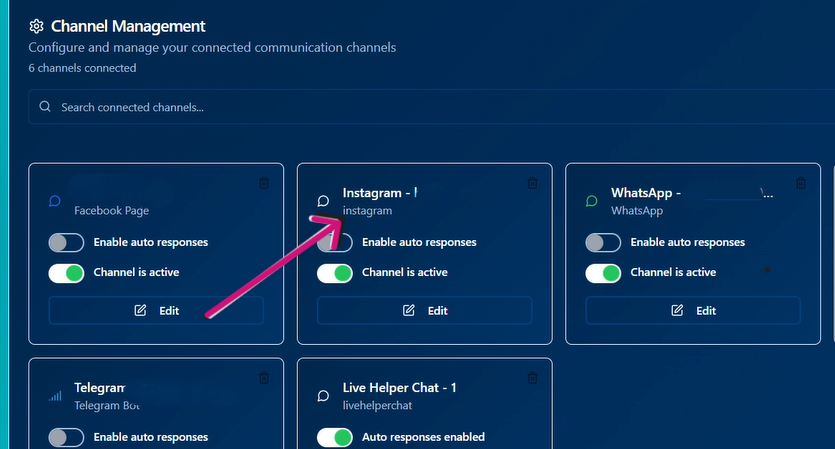
Step 11: You’re officially in! Your Instagram channel should appear on your interface as shown below. You can turn on automated responses.
Bonus step: Try out your new system to get the feel of what your clients will be experiencing when interacting with HabariChat on your multiple channels.