

The Inbox is your unified message center, centralizing all communications from
various connected channels into a single, easy-to-manage interface.
The Inbox has 2 tabs: The messages tab ensures you are able to view, edit, and respond to all your customer interactions.
The Channel Management tab allows you to connect new communication platforms and configure their settings, ensuring all your customer interactions are streamlined.
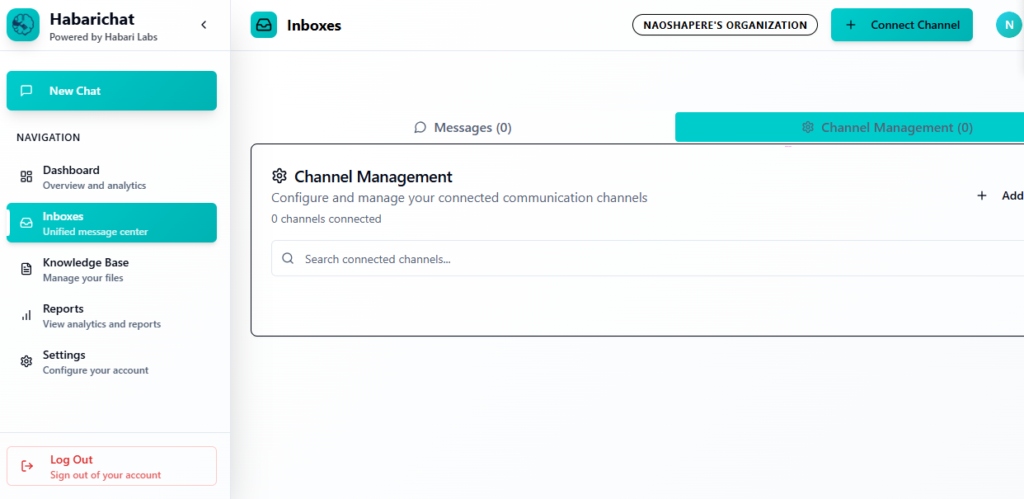
With Channel Management, you can:
- Connect New Channels: Integrate various communication platforms (Email,
SMS, Webchat, WhatsApp, Instagram, Facebook, and Telegram).
- Manage Existing Channels: Edit or delete connected channels.
- Enable and disable auto responses.
- Activate and deactivate your account: This stops any other messages from being processed by habarichat but you retain all your old conversations. It also allows you to reconnect the deactivated account without repeating any configurations.
- Organize Conversations: Keep track of all your customer interactions in one place.
Here are ways you can manage your channels:
Editing a Channel
1. In the “Inboxes” section, navigate to the “Channel Management” tab.
2. Locate the channel you wish to edit from the list.
3. Click the “Edit” or “Settings” icon (often a gear or pencil icon) next to the channel name.
4. Modify the desired configurations (e.g., update API keys, change
display name, adjust notification settings).
5. Click “Save Changes”.
Deleting a Channel
1. In the “Inboxes” section, navigate to the “Channel Management” tab.
2. Locate the channel you wish to delete.
3. Click the “Delete” icon (a trash can icon) next to the channel name.
4. Confirm your decision when prompted.
Deleting a channel will remove its messages from your unified inbox, but typically, it will not delete the messages from the original platform.
Turning autoresponse on or off
HabariChat uses AI assistants trained on your business documents, FAQs, policies, and workflows to automatically answer common questions. Turning on Autoresponse lets AI answer routine questions while humans handle complex cases. It also reduces response time and ensures your customers are answered promptly.
Here is how to go about turning autoresponse on or off:
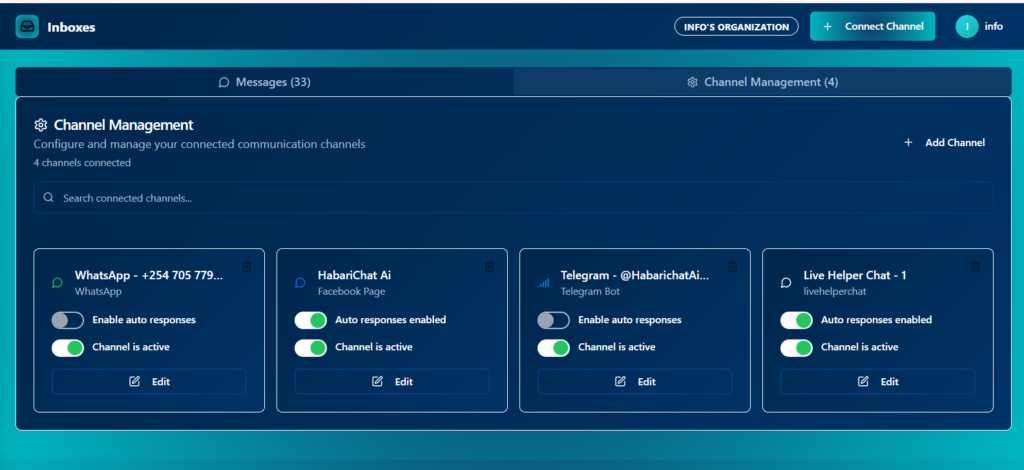
- Go to Channel Management.
- On each of the channels, you’ll see an ‘enable autoresponse’ icon with a flippable button.
- Turn it on or off.
- Make sure to test it when you turn it on by sending yourself a message from the channel of your choice, then checking the response.
And now you’re a pro at using Habarichat and your bank account will thank you for it. Try us today!